Uploading and collections
What a collection is, what to put in one, how uploads are read, and the one mistake to avoid.
What it is for
A collection is a group of documents that belong together: a project, a subject, a team's material. It is the unit everything else attaches to. Access is granted per collection, the dictionary is built per collection, retention rules are set per collection, and the assistant can be asked about one collection at a time. Folders sit above collections and only organize them, the way folders on a computer organize files; they change nothing about access.
The three marks
On the workspace page, a folder has a folder mark, a collection a tray of documents, and a document a single page with a folded corner. The same three marks are used wherever documents are listed, and the demonstration on the hierarchy page uses them beside the marks for units, so the two sides (documents, people) read apart at a glance.
The three things most people do
Make a collection. On the workspace page, New collection on the bar above the Documents list opens a one-line form: type a name, pick a folder if you use them, and create it. Name it for what the documents are about, not for who uploaded them. The collection appears in the list at once, with its folder picker and Options on its row.
Make and arrange folders. New folder on the same bar opens a one-line form. Reorder shows the whole arrangement: drag folders into the order you want, drag collections into order inside a folder or into another folder (or use the arrows and the folder picker on each row), then Save; the arrangement holds for everyone. Moving a collection between folders changes nothing about who can reach it, and the panel says so before you save. Options next to a folder opens its page, where it is renamed or deleted.
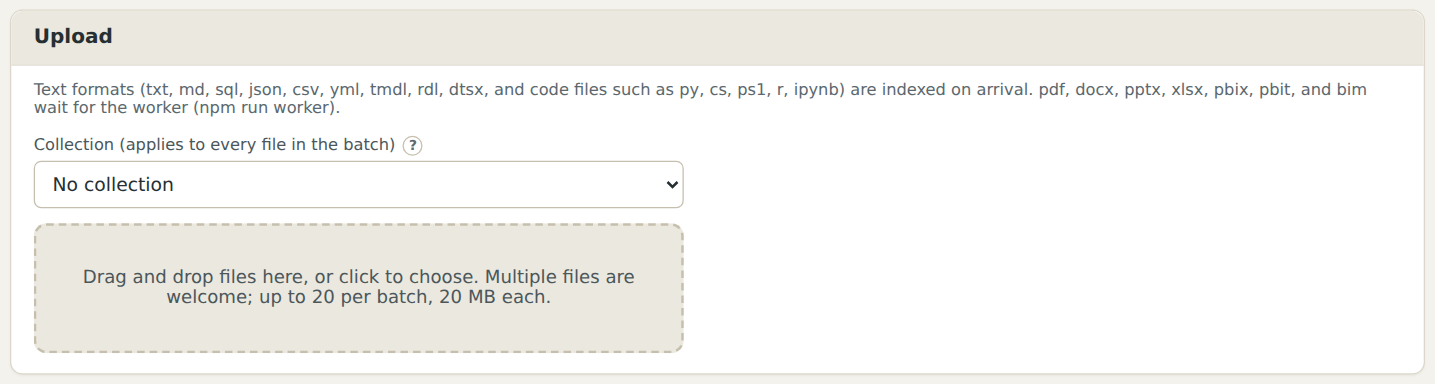
Upload to it. Two ways. Under Upload, drop files or pick them (they are listed first), choose the collection, and press Start; the collection is fixed while the batch runs, and Cancel stops a batch that is still sending. Or drag the files straight onto a collection in the Documents list: the card lights up, and an upload panel opens under it with the collection already set, waiting for Start. Either way the box shows the bytes going up, then Indexing, then each file's result, and the Upload panel keeps a history of your uploads for the session. Text, Markdown, CSV, SQL, Word, PDF, Excel, PowerPoint, Power BI (pbix, tmdl), SSRS (rdl), SSIS (dtsx), dbt, and DDL files are read. Text files are read at once; the others are read by the worker shortly after, and the Extraction column on the workspace page shows when each is done. A document can be uploaded again later as a new version; the old versions are kept.
See what was read. Open Sources and select a document. The inspector shows exactly the passages the assistant searches, nothing more, so you can see what a question can and cannot find. A spreadsheet contributes its structure (sheets, headers, named ranges), not its rows; a database script contributes its definitions.
What DocuDriver keeps, and what it never keeps
The product keeps the text of written documents and the structure of data files. It never keeps data rows: a spreadsheet's numbers are not stored or shown to the assistant, and a database script's definitions are read without any data. That is what makes it safe for documentation about systems that hold personal records. The one thing to avoid: do not paste records into a document. A procedure that contains a table of names is kept as text like any other document.
The one mistake to avoid
One collection for everything. Access, retention, and the dictionary all work per collection, so a single collection means every member sees everything and every rule applies to everything. Three or four collections that mirror how your organization already thinks about its documents (a department's procedures, a system's documentation, a project) is the usual right answer; folders can group them further.